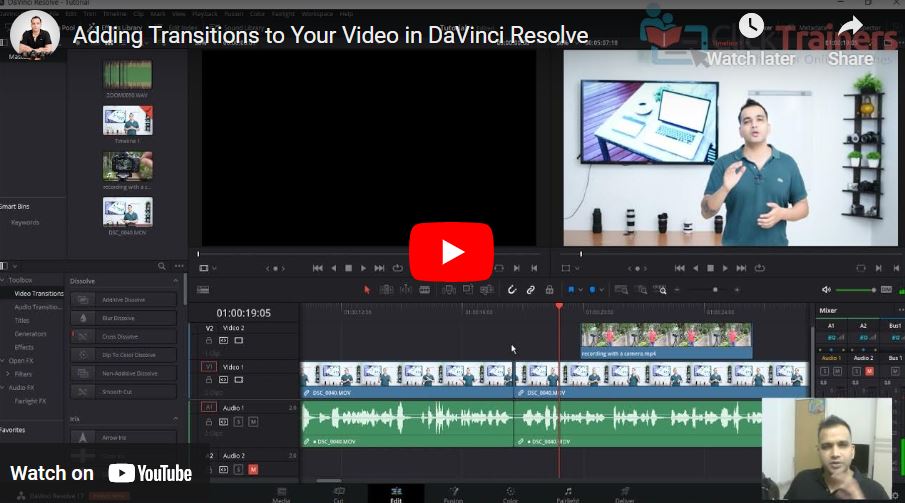
How do You Add Transitions in Davinci Resolve? – Beginners Tutorial
“Ready to take your videos to the next level? In this beginner-friendly tutorial, we’ll show you how to add seamless transitions in DaVinci Resolve! Whether you’re editing a travel vlog, a short film, or any project, transitions can make your edits smooth and professional. We’ll cover everything step-by-step, from finding the transitions to customizing them for the perfect look. Let’s dive in and transform your video edits with ease!
This video is from our DaVinci Resolve Video Editing Course.
Video Summary:
This tutorial addresses playback lag in DaVinci Resolve and demonstrates how to add transitions. To improve performance on less powerful computers, the host suggests enabling timeline proxy mode (e.g., quarter resolution), using smart render cache, and following an external guide to optimize media. If issues persist, switching to the stable DaVinci Resolve 16 is recommended over the beta version 17.
The second part shows how to soften a hard cut between clips. By opening the Toolbox > Video Transitions, you can drag and drop a transition (like “Blur Dissolve” or “Cross Dissolve”) onto the cut. You can then adjust the transition’s duration either directly on the timeline or in the Inspector panel.
Timestamps:
0:12 – Introduces playback lag as a common issue, especially on less powerful computers running DaVinci Resolve.
0:31 – Solution 1: Enable Timeline Proxy Mode and set it to Quarter Resolution to reduce preview quality and improve playback performance.
1:00 – Solution 2: In Playback > Render Cache, select Smart. You can also Delete Render Cache to clear old files.
1:24 – Solution 3: Recommends an external YouTube video (linked in description) for further optimization techniques, like Optimizing Media.
2:05 – Final Tip: If lag continues, consider switching from DaVinci Resolve 17 (beta) to the more stable version 16.
2:42 – Adding Transitions: Opens the Toolbox > Video Transitions panel to access a library of transitions.
3:24 – Demonstrates dragging a Blur Dissolve transition onto a hard cut between two clips to create a smoother change.
3:49 – Shows how to adjust the transition duration either by dragging its edges on the timeline or by changing the Duration value in the Inspector panel.
4:12 – Recommends the Cross Dissolve as a common and favorite transition for fading smoothly between clips.
4:27 – Teases the next topic: adding text and titles to videos.