What is a Smart Collection in Lightroom Classic? – Beginners Tutorial
Welcome to this beginner’s tutorial on Smart Collections in Lightroom Classic! In this video, you’ll learn how Smart Collections can simplify your workflow by automatically organizing your photos based on rules you set, like ratings, keywords, or file types. Whether you’re managing a small project or an extensive library, Smart Collections help save time and keep your work organized. Let’s dive in and explore how to create and use them effectively!
This video is from our Lightroom Workflow and Organization Course.
Video Summary
This lesson covers high-level organization in Adobe Lightroom Classic, focusing on two powerful automation tools: Smart Collections and the Painter Tool. You will learn how to set specific criteria (like star ratings or keywords) so that Lightroom automatically sorts your best work for you. Additionally, the instructor demonstrates how to use the “Spray Can” Painter Tool to rapidly apply keywords, ratings, and even visual presets to large groups of photos in the Library grid.
Time Stamps
- 0:17 – Smart Collections Concept: Why they are more automated than Target Collections.
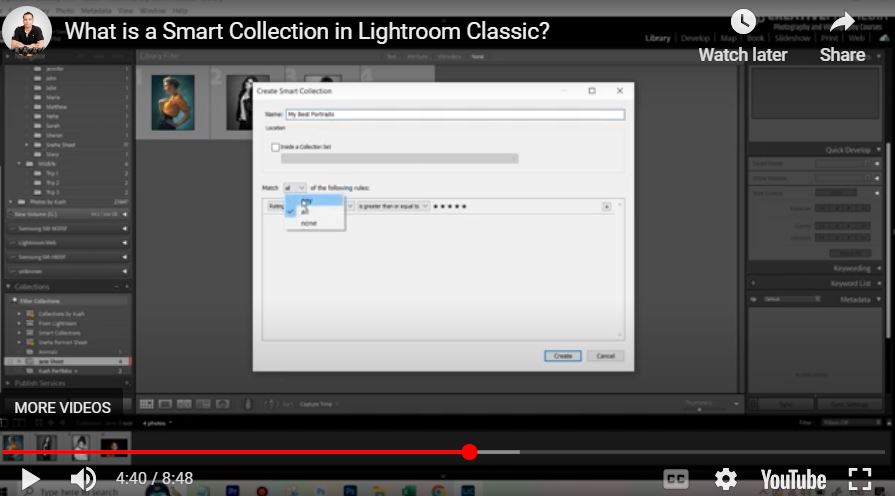
- 0:40 – Creating Rules: Setting up a “My Best Portraits” collection using specific criteria.
- 1:12 – Filtering by Rating: Defining a rule where only 5-star images are included.
- 1:51 – Advanced Filtering: Adding secondary conditions like “Source Collection contains ‘shoot'” to narrow results.
- 4:52 – Dynamic Updating: Demonstrating how the collection automatically grows when you rate a new photo.
- 5:42 – The Painter Tool (Spray Can): Locating and activating the bulk-editing tool in the Library module.
- 6:18 – Painting Keywords: Applying specific tags (e.g., “outdoor portraits”) just by clicking on photos.
- 7:26 – Rating & Labeling: Using the tool to quickly apply stars or color labels to a grid of images.
- 8:18 – Painting Presets: Applying development settings (like Black & White) instantly without entering the Develop module.