How to Use Double Exposure in Snapseed for Blending Multiple Images
In this video we will be learning how to use the Double Exposure tool in Snapseed, which can help us in blending multiple photos. We will be paying a lot of attention to the different blending modes that this tool has, which are the most important part of understanding how this tool works. Here’s the video:
Video Summary
This video is a comprehensive beginner’s tutorial on using the Double Exposure tool in Snapseed to blend two images creatively.
Understanding Double Exposure and Layers
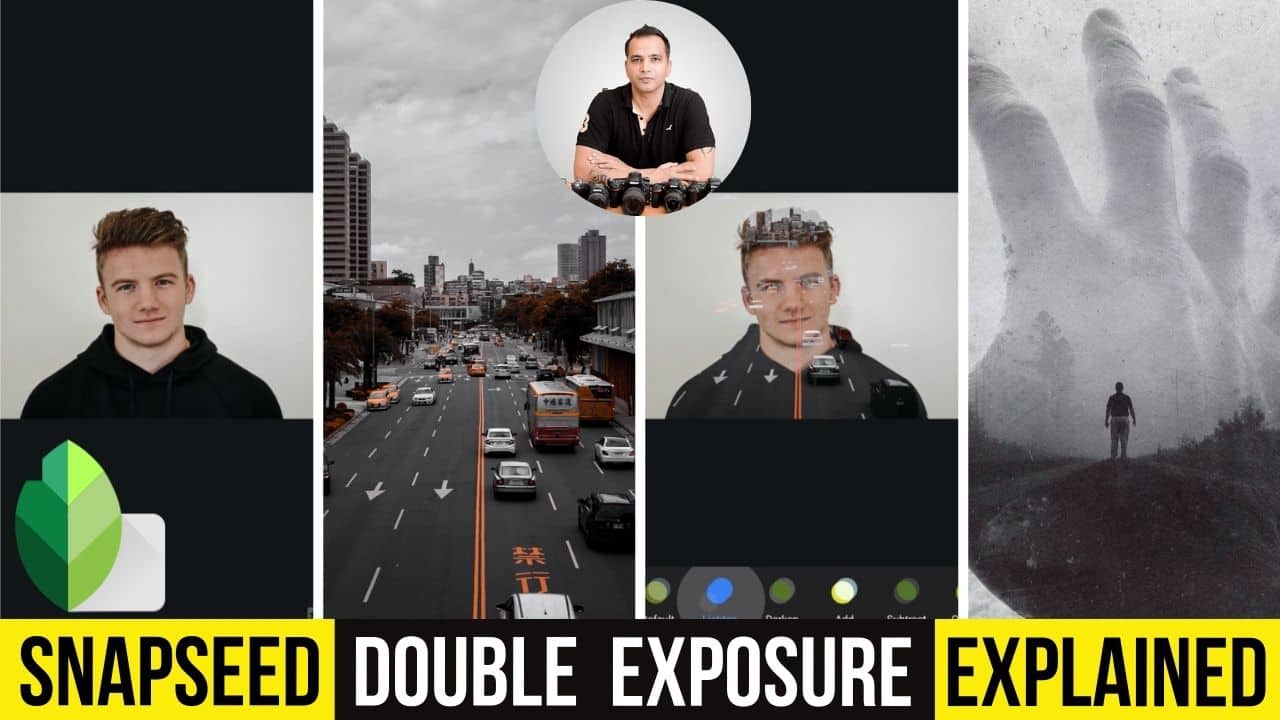
- Core Concept: Double exposure involves superimposing two images so they appear in a single frame. The original photo is the Base Layer, and the second added photo is the Blend Layer [02:41].
- Default Blending: By default, Snapseed superimposes images at 50% opacity. You can adjust this using the Opacity slider; moving it right favors the blend layer, while moving it left favors the base layer [03:43].
Mastering Blend Modes
The instructor explains five primary blend modes that determine how pixels from the two images interact:
- Lighten: This mode compares pixels and displays the lighter one. It’s ideal for artistic portraits where you want the blend image (e.g., a city landscape) to appear only within the darker areas of the subject’s body, while a white background remains clean [06:29].
- Darken: The opposite of lighten; it gives preference to darker pixels. This can make a face disappear if the blend layer has darker areas overlapping it [11:05].
- Add: This adds the RGB values of both images’ pixels together. Since higher values are closer to white (255), this mode significantly brightens the overall image [14:39].
- Subtract: This subtracts pixel values, causing the image to become much darker. It’s useful for specific advanced technical adjustments [15:07].
- Overlay: A combination of lighten and darken that increases contrast. It makes light areas lighter and dark areas darker, similar to a high-contrast filter [17:02].
Pro Tips for Better Results
- Background Choice: For the best artistic “silhouette” effect, use a base portrait with a solid white background. If your original photo doesn’t have one, replace the background with white first [18:53].
- Experimental Approach: Because blending modes can be technical, the instructor recommends “cycling through” all modes to see which one creates the desired visual effect for your specific images [18:00].
- Add Meaning: Double exposure is often used to convey themes, such as blending a person’s portrait with a landscape or object that represents their personality or memories [19:15].
Important Links
Link to download the images used in the video:
If you want to master Snapseed, then check out our Snapseed Photo Editing course, which has 27 videos and 4.5 hours of content. You can use the link below to access the course on Udemy: