How to Shoot a Video by Yourself – Focusing, Settings and Audio
In this video we will be learning how to shoot a video all by yourself. We will be learning how to focus, what settings to use for the video and how to record the audio. These things can be a bit challenging to do when you are shooting alone. So hopefully this video will help you out.
Here is the video:
If you want to learn the art of Videography, then do check out our course called Videography for Beginners, using the link below:
Videography for Beginners course
Video Summary
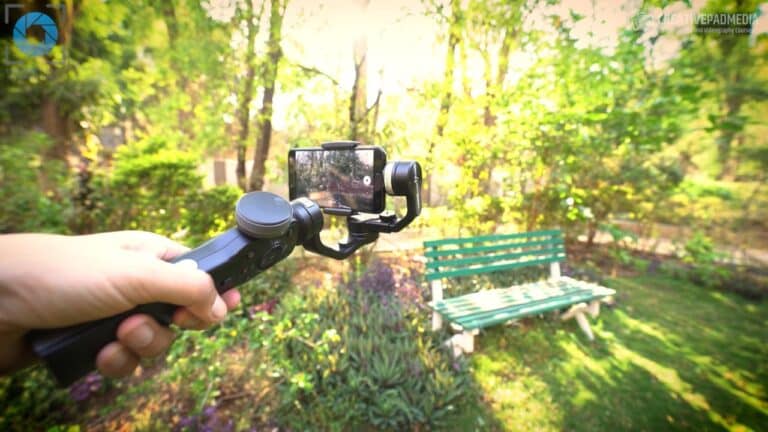
This video tutorial provides practical tips for shooting a video of yourself in an open environment, such as outdoors, where you are not near a computer.
Audio Setup
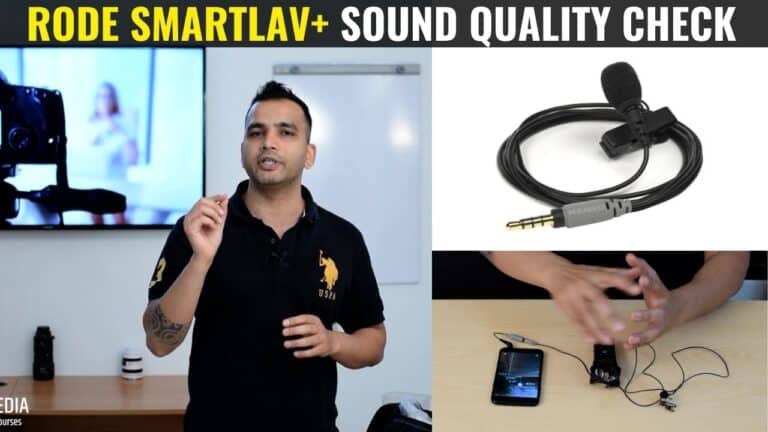
- Lapel Mic: Use a wired lapel (collar) mic like the Rode SmartLav+. Run the wire under your shirt and connect it to your smartphone in your pocket [00:24, 00:53].
- Recording App: Use a simple app like Easy Voice Recorder to capture the audio [00:35].
- External Recorder (Optional): A dedicated recorder like the Zoom H1n offers superior audio quality and frees up your phone to be used as a camera if needed [02:00, 02:19].
Camera Settings (DSLR/Mirrorless)
- Resolution: Set your camera to Full HD (1920 x 1080), sometimes labeled as 1080p or FHD [04:17].
- Frame Rate: Choose 24 fps (frames per second) for a natural, cinematic look [04:57].
- Mode: If you are a beginner, using Auto Mode is the easiest way to ensure the camera handles the exposure correctly [05:47, 06:04].
How to Focus When Shooting Alone
Achieving focus can be tricky when you aren’t behind the camera.
- Remote Shutter/App: Use a physical remote shutter release or a smartphone app that controls your camera remotely [06:33, 06:51].
- Mark Your Spot: Go to where you intend to stand, and use the remote to take a test photo. This forces the camera to lock its focus on you [07:03, 07:24].
- Physical Reference: Note exactly where your feet are (use a coin, a leaf, or a specific plant as a marker) so you can return to that precise spot after you hit the record button [07:52, 08:23].
Post-Production Tip
Because you are recording audio on your phone and video on your camera, you will have two separate files. You will need to sync these two files during the editing process on your laptop to ensure the high-quality audio matches your movements [09:10, 09:27].