How to Use the Make-up Transfer Neural Filter in Photoshop (AI)
The Make-up Transfer Neural Filter in Photoshop is a powerful AI-driven tool that allows you to transfer the makeup style from one image to another with ease. Whether you’re editing portraits for clients or enhancing personal projects, this filter simplifies the process of achieving professional-looking results. In this video, we’ll guide you through how to use this innovative feature, step by step, to elevate your photo editing game.
This video is from our Photoshop Generative AI Editing MasterClass Course.
Video Summary:
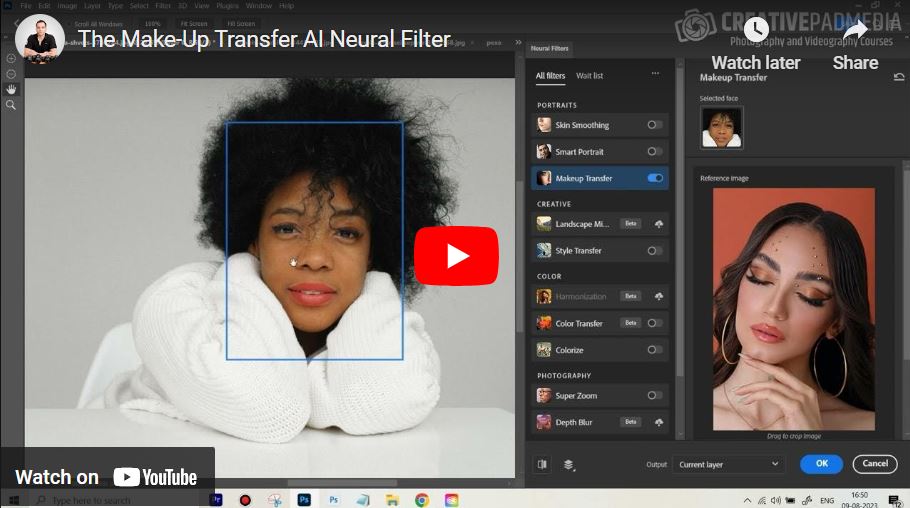
This tutorial demonstrates how to use Photoshop’s Makeup Transfer Neural Filter. The host shows how to apply makeup from a reference photo to a portrait without any makeup. The process is quick and involves selecting a reference image, letting the filter process, and then optionally refining the result with the Skin Smoothing slider for a polished finish.
Important Time Stamps
- 0:00 – 0:23 – Introduction to the video’s goal: transferring makeup from reference images to a portrait with no makeup.
- 0:43 – 0:52 – Navigating to Neural Filters and activating the “Makeup Transfer” option.
- 0:59 – 1:03 – Explanation of how to select a reference image, either from open documents or your computer.
- 1:20 – 1:38 – First makeup transfer is processed; the host compares the before and after, noting the lipstick and eye makeup are applied.
- 1:47 – 2:03 – Acknowledgment that the filter isn’t perfect and can sometimes generate errors, but it applies basic makeup effectively.
- 2:17 – 2:28 – Testing a third reference image with dark lipstick, showing how the filter adapts to different styles.
- 2:35 – 2:47 – Using the Skin Smoothing slider to quickly blend and improve the makeup result.
- 2:51 – 3:00 – Final before-and-after comparison, highlighting the significant transformation achieved in just a few clicks.