Most Realistic FREE AI Headshot Generator – DZine AI Tutorial
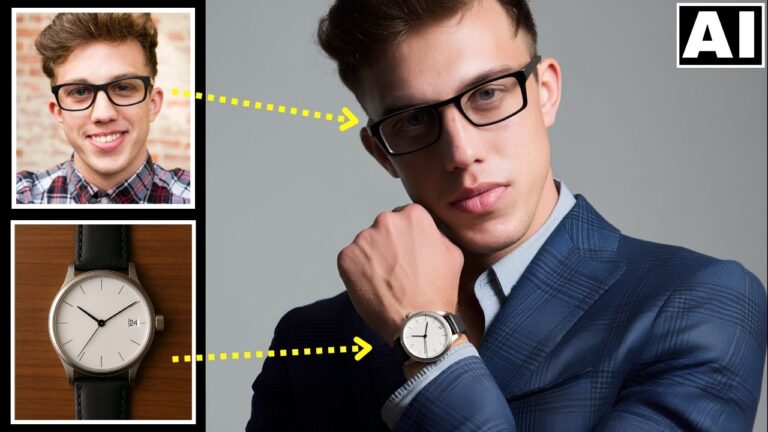
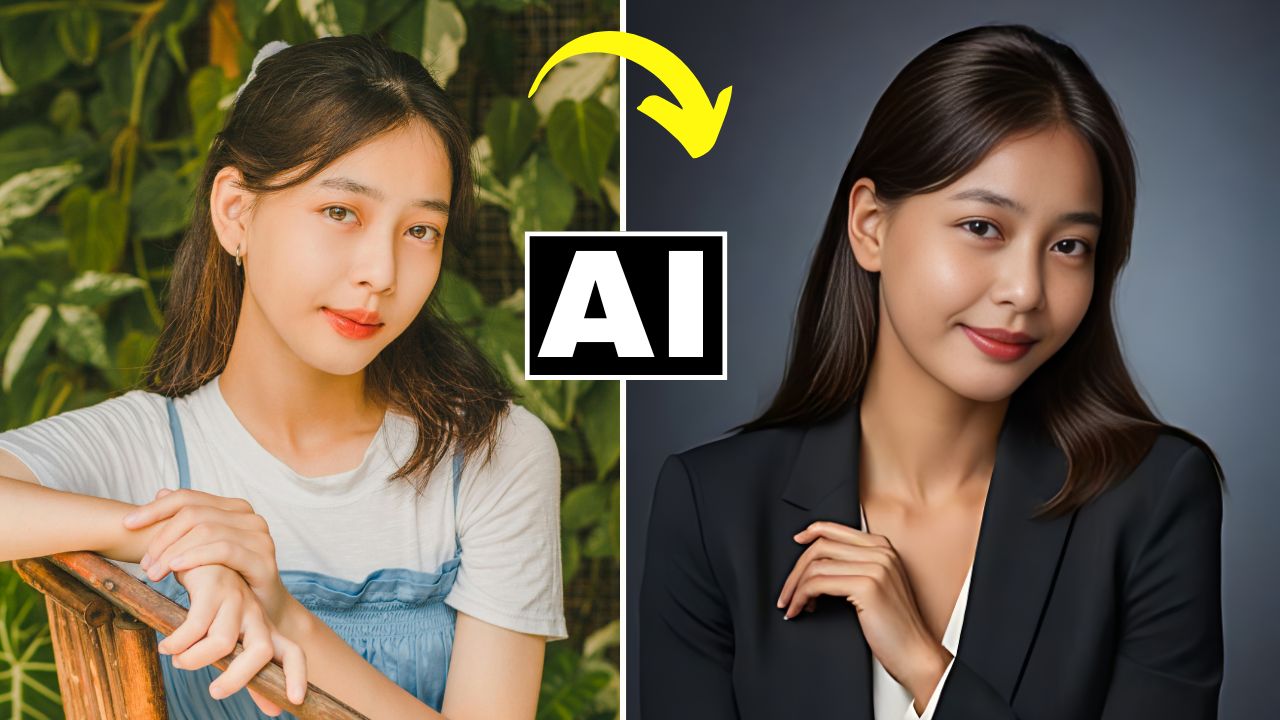
In this video we will be seeing how to turn an ordinary portrait into a professional studio headshot using a free AI tool called Dzine AI. We will also be using a host of other free AI tools to achieve the final outcome. Here’s the video:
Video Summary
In this tutorial, the instructor demonstrates a multi-step AI workflow to turn casual outdoor photos into professional corporate headshots using entirely free tools. The core of this tutorial is about maintaining structural integrity. Most AI generators change your pose or body shape, but this workflow uses specific settings and a “chain” of tools to ensure the final professional image still actually looks like you.
- Primary Tool: Dzine.ai (formerly Styler.ai). It offers a “Structure Match” slider that is the secret to keeping your original pose while changing your clothes to a suit.
- The Problem-Solving Phase: The instructor shows how to handle “challenging” faces (unique hair or jawlines) by generating two separate versions and blending them in Photoshop.
- The Realism Chain: To fix “AI-looking” faces, the workflow moves from generation to Face Swapping, then to Eye Direction Correction, and finally to AI Restoration for high-end skin texture.
Time Stamps
- 0:00 – Introduction to the workflow and Dzine.ai (Styler.ai).
- 0:50 – Understanding the credit system (50 free credits + 30 daily replenishments).
- 1:33 – Comparison: Why standard AI headshot tools often produce mediocre/fake results.
- 2:43 – Accessing the AI Profile Picture tool and setting up the canvas.
- 4:22 – Style Intensity vs. Structure Match: Explaining the two most important sliders.
- 5:00 – Pro-Tip: Using Structure Match to lock in your body’s outline.
- 7:20 – Analyzing the first generation (4 images) and checking for “AI finger” errors.
- 8:20 – The Realism Hack: Why a perfect structure is better than a perfect face (prepping for face swap).
- 9:22 – Remaker AI: Swapping your real face onto the professional AI body.
- 10:52 – Starting the “Challenging Portrait” (handling unique hair and bone structure).
- 12:30 – Advanced Technique: Generating a “Strict” version vs. a “Liberal” version.
- 14:26 – Photoshop Integration: Using Layer Masks and Generative Fill to combine the best parts of both AI images.
- 16:20 – Final Face Swap for the challenging portrait.
- 17:12 – Reshot.ai: Using the “Eyes Editor” to fix the subject’s gaze and look directly at the camera.
- 18:05 – PhotoRestore.io: Final sharpening and adding realistic skin texture to remove the “AI blur.”
- 18:25 – Upscaling the final result for high-resolution use (LinkedIn/Web).
- 18:40 – Final before-and-after comparison of the entire workflow.
Important Links
Here are all the links:
Reshot AI Eye Direction Changer