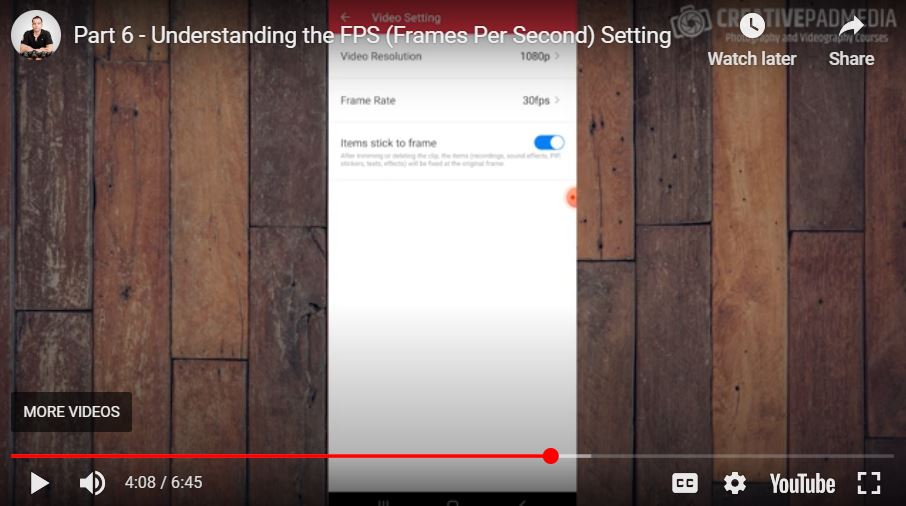
What is Frame Rate in Inshot? – Easy Explanation for Beginners
Wondering what frame rate means and how it affects your videos? In this beginner-friendly video, we’ll break down the concept of frame rate in the easiest way possible. You’ll learn how to adjust frame rates in InShot and understand how it impacts the smoothness and quality of your videos. Whether you’re editing for social media or creating professional content, this quick guide will help you choose the perfect frame rate every time!
This video is from our Inshot Video Editing Course.
Video Summary
In this tutorial, the instructor breaks down the technical concept of Frames Per Second (FPS) and explains why it is crucial for a professional video editing workflow. He explains that matching your shooting, editing, and exporting frame rates ensures the smoothest possible playback and avoids “choppy” video. The video also touches on how higher frame rates (like 60 FPS) allow for high-quality slow-motion effects when used on a standard (30 FPS) timeline.
Time Stamps
- 0:00 – Introduction: Why FPS is a vital “technical” point to understand mid-course.
- 0:47 – Definition of FPS: How many individual frames are captured per second.
- 1:12 – How to check FPS: Using the “Details” or “Properties” panel in your phone’s gallery to see video resolution and frame rate.
- 1:47 – Standard Rates: Explaining that 24 FPS and 30 FPS are the most common for a natural look.
- 2:25 – The Three Stages of Video Production: Shooting, Editing, and Outputting.
- 2:50 – Best Practice: Keeping the FPS consistent across all three stages (e.g., Shoot at 30, Edit at 30, Export at 30).
- 3:30 – Changing Settings in InShot: Accessing the “Gear Icon” on the home screen to adjust default resolution and frame rate.
- 4:27 – Multipliers & Compatibility: Why 60 FPS works well on a 30 FPS timeline (it’s a direct multiplier), whereas non-multipliers can cause frame “choppiness.”
- 5:38 – Slow Motion: Explaining how shooting at a higher FPS allows you to slow down footage smoothly during the edit.
- 6:18 – Conclusion: Why 30 FPS was chosen for the current project.