How to do Motion Blur in Inshot by Tracking Moving Subject?
Welcome to this tutorial on how to blur a moving part of your video in InShot, like tracking and blurring a person’s face as they move. This technique is perfect for maintaining privacy or creating a unique effect in your edits. In this video, we’ll show you step-by-step how to apply and track a blur that moves seamlessly with your subject, ensuring a professional and polished result. Let’s dive in and start editing!
This video is from our Inshot Video Editing Course.
Video Summary
This tutorial demonstrates how to blur and track a moving object —such as a face, logo, or license plate—using the InShot mobile app. Since a standard blur remains stationary, the video explains how to use keyframes to manually track the movement of a subject. By combining the “Detail” sticker tool with strategic keyframe placement, users can ensure the blur follows the subject across the screen, even during fast-paced motion.
Time Stamps
- 0:00 – Common use cases for blurring: logos, faces, and license plates.
- 0:46 – Navigating to the Sticker > Detail option in InShot.
- 1:06 – Exploring blur styles: Pixelated (dotted), standard blur, glass effect, and magnification.
- 1:47 – Customizing the blur shape, size, and opacity.
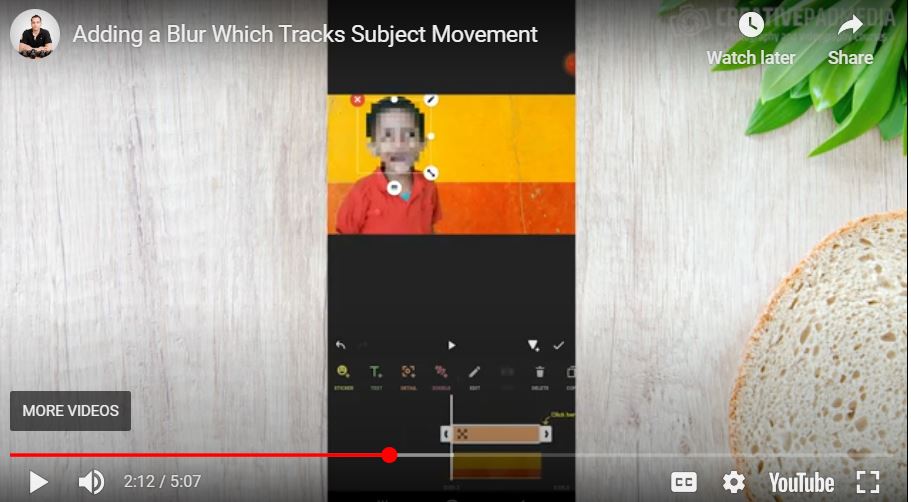
- 2:11 – The problem with static blurs: The subject moves while the blur stays still.
- 2:43 – Introducing Keyframes as the solution for manual motion tracking.
- 2:58 – Setting the initial keyframe at the start of the clip.
- 3:14 – The “Auto-Keyframe” process: Moving the blur automatically creates new tracking points.
- 4:46 – Reviewing the final tracked blur effect.