Fix AI-Generated Text With 1 Click – Higgsfield Layers Edit
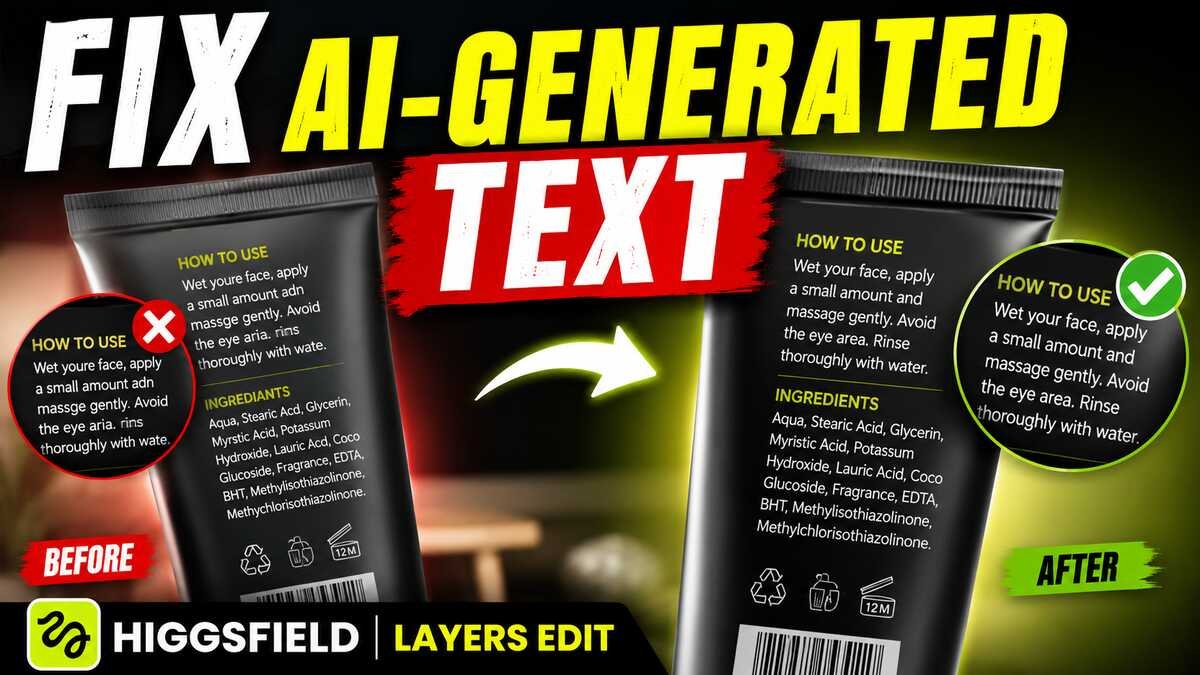
This tutorial shows you how to fix incorrect or distorted text on AI-generated product images using Higgsfield’s Layers Edit feature. You’ll learn how to detect, edit, and replace text directly within an image, making it easy to correct product labels, instructions, ingredients, and other small text without regenerating the entire image. Here’s the video:
Video Summary
Here is a brief summary of the video “Fix AI-Generated Text With 1 Click – Higgsfield Layers Edit” by Creative Pad Media (http://www.youtube.com/watch?v=VLSU4kBR7O0):
- The Problem with AI Text: standard AI image generators often struggle to render clear, accurate fine print or small text on product mockups [00:18].
- Using Higgsfield Layers Edit: By uploading an AI-generated image to Higgsfield’s Layers Edit tool, you can select the Edit Text feature to automatically detect every text element [00:41].
- Text Editing Workflow: Users can select detected text lines, correct spelling errors or missing spaces (directly or by copying to Notepad to edit and paste back), and re-insert the corrected copy [01:25].
- Regeneration & Best Practices: Regenerating the image uses the Seedream 5.0 Pro model [03:18]. To get optimal results, the target text must be prominent enough in the original frame, as text that is too small or far away may still render with artifacts [04:09].
- Bonus Feature (Layer Decomposition): Beyond text, the tool allows separating a flat graphic into individual editable layers, enabling users to move, resize, or delete specific elements [06:07].
Important Links