Photo to Pencil Sketch Effect in Photoshop (VIDEO)
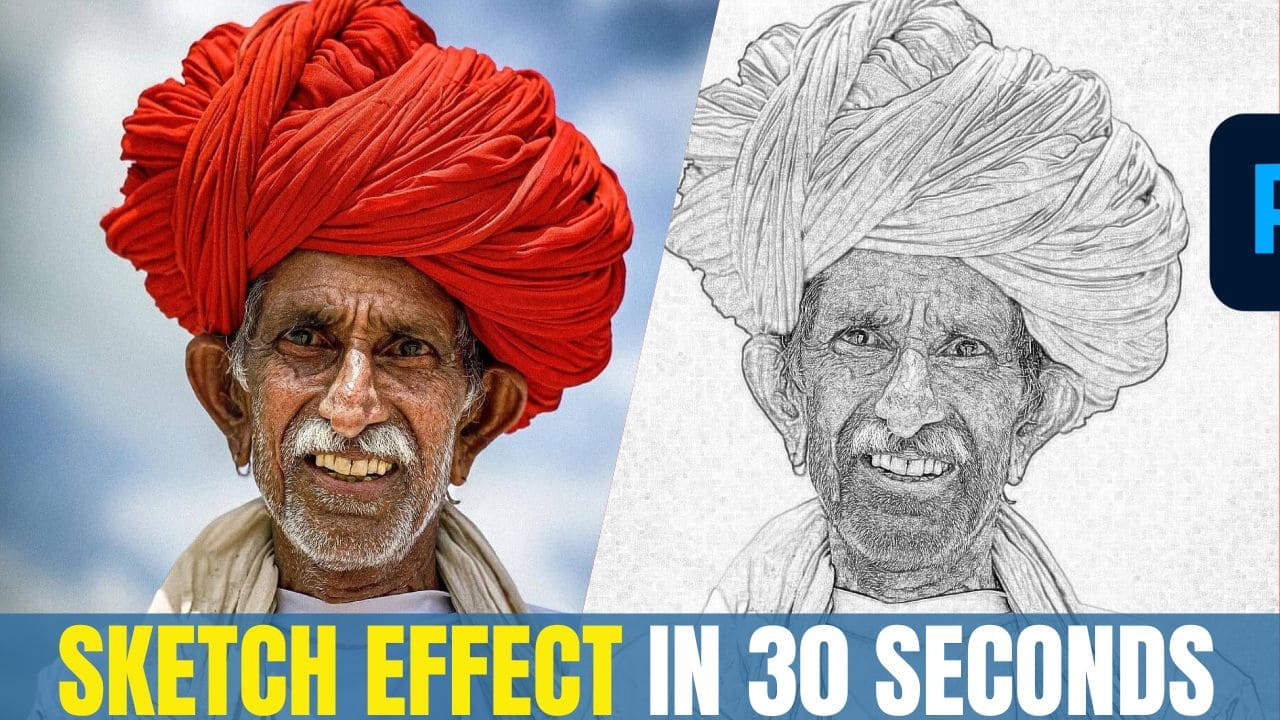
In this video we will be learning how to create the pencil sketch effect in Photoshop by turning a regular photo to a pencil sketch which is also sometimes called as a Photoshop drawing effect.
Here we will be desaturating the image first and the blending its duplicate using the Color Dodge blending mode. Then we will be applying the Minimum filter to the inverted blended layer to get the final sketch effect.
Here is the video:
Link to download the image used in the video:
https://www.pexels.com/photo/elderly-man-wearing-turban-7594676/
To check out our premium Photography online courses, use the link below:
https://www.creativepadmedia.com/online-courses/
Video Summary
This video by Creative Pad Media demonstrates a quick and easy method to transform a high-resolution photograph into a pencil sketch using Adobe Photoshop.
Summary of Key Steps
- Preparation: The tutorial emphasizes using a high-quality, high-resolution image for the best results [00:20].
- Desaturation: The first step is to remove all color from the image by selecting Image > Adjustments > Desaturate, turning the photo into a black and white base [00:34].
- Layer Blending: After duplicating the layer, the top layer’s blending mode is set to Color Dodge, which significantly brightens the image [00:55].
- Inverting and Filtering: The top layer is inverted (Ctrl/Command + I) [01:14], then the Minimum Filter is applied via Filter > Other > Minimum. This filter expands the black areas to create the sketch lines [01:33]. The Radius slider is used to control the prominence of these edges [01:46].
- Fine-Tuning: If the sketch has unwanted black patches or artifacts, the creator suggests using a Curves adjustment on the bottom layer to manually control the contrast and clean up the final look [02:24].