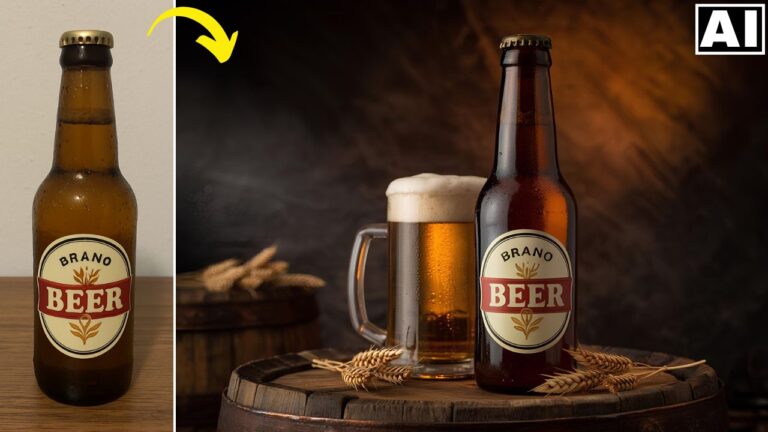
Turn Boring Jewelry Shots Into Professional Ones Using FREE AI Tools
In this video we will be seeing how to edit jewelry shots using AI, which can allow you to turn an ordinary looking shot of a ring into something more professional with a single click. We will also be seeing how to use AI to add shine to the jewelry. A bit of Photoshop work will also be done to achieve the final result. Here’s the video:
Video Summary
This tutorial by Kush Sharma from Creative Pad Media explains how to transform ordinary jewelry photos into high-end professional shots using a combination of free AI tools and Photoshop.
Key Steps and Tools:
- Background Generation (Mokker AI):
- Upload your jewelry image and select relevant templates [01:14].
- Use the Baseline model for complex scenes with many props to maintain product accuracy, whereas the Iris model is better for simpler, prompt-based generations [02:23, 07:06].
- For custom backgrounds, use ChatGPT to generate detailed prompts inspired by existing jewelry photography [09:42].
- Adding Shine (DZine AI):
- Compositing and Refinement (Photoshop):
- Align the original and shiny images. Use Layer Masks to selectively paint in the shine while keeping essential product details (like brand text) from the original shot [18:27, 19:14].
- Change the blending mode to Luminosity for the shiny layer to add “punch” and brightness without altering the jewelry’s original color [23:18].
- Final Upscaling:
- Finish by using Upscale.media to sharpen the image and increase resolution for a professional, high-quality result [24:36].
Important Links
Link to download the images shown in the video:
For other important links to the tools shown in the video, please watch the video on YouTube app/website, since the links are in the description of the video.