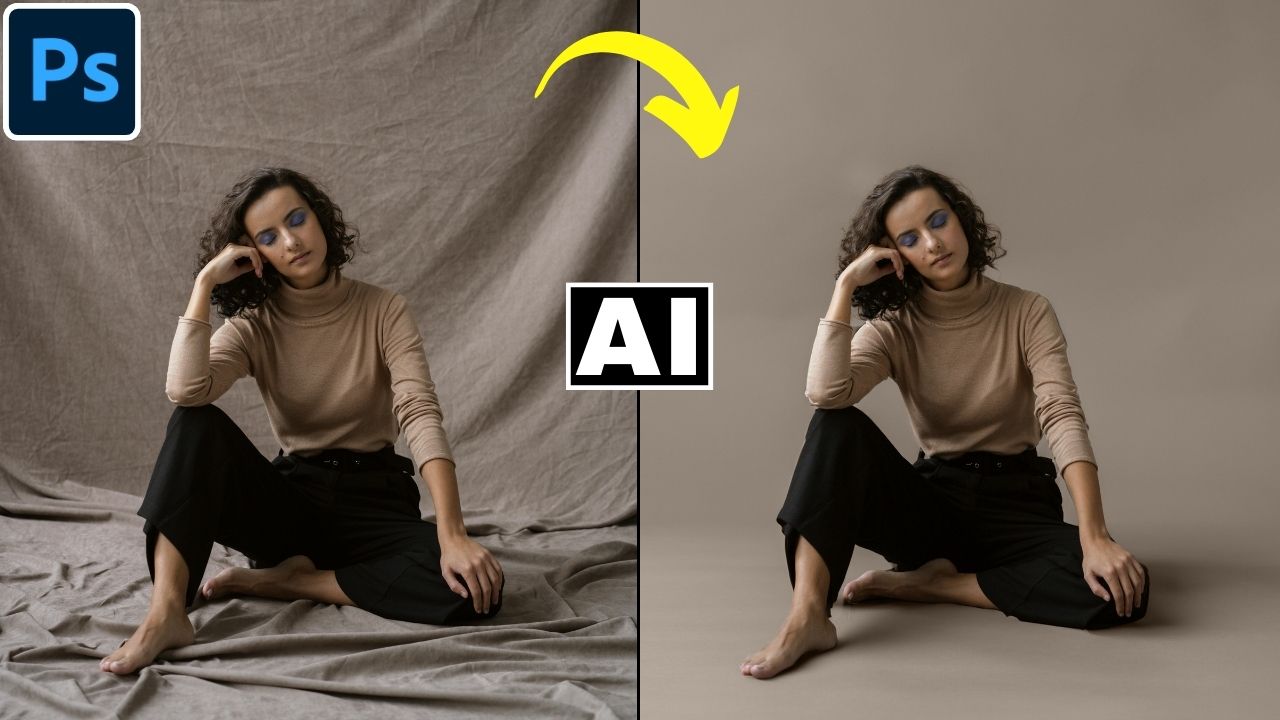
Use AI Generative Fill to Remove Wrinkles in Backdrop in Photoshop
In this video we will be seeing how to remove wrinkles from backdrop in Photoshop using AI Generative Fill. You will find out which exact prompt works the best when it comes to cleaning and fixing the creases and making the backdrop really smooth. We will also be using some other AI tools to get rid of any artifact issues that remain after using Generative Fill. Here’s the video:
Video Summary
This tutorial by Creative Pad Media explains how to use Adobe Photoshop’s AI tools to transform a wrinkled studio backdrop into a smooth, seamless paper finish.
Key Summary Points
- Generative Fill Workflow: The most effective prompt for cleaning up backdrops is “plain backdrop” [01:39]. This typically generates high-quality results that maintain the original lighting and shadows while removing wrinkles [02:03].
- Color Correction: If the AI produces a mismatched or gray color, you can fix it by adding a Solid Color adjustment layer using the original backdrop’s color and changing the blending mode to “Color” [03:09, 04:15].
- Preserving the Subject: AI often degrades the details of the subject (like hair and feet). To fix this, the creator uses Pixelcut.ai, a free web tool that removes backgrounds at full resolution [06:24, 07:17]. This transparent image is then placed back into Photoshop as a top layer to restore the subject’s original sharpness [08:21].
- Handling Challenging Areas: AI struggles with bare feet and hands. The tutorial shows how to use Generative Fill on small problem areas or the Spot Healing Brush for fine-tuning near the edges [11:13, 13:00].
- Final Tip: For the easiest workflow, the creator humorously suggests asking clients to wear shoes to avoid the complexities of AI-generated toes [15:40].
Conclusion: Successful AI editing requires a combination of Generative Fill, external background removers for quality retention, and traditional masking techniques.
Important Links
Here is the link to get the Photoshop free trial so you can use the AI tools shown in the video:
Adobe Photoshop Plan Free Trial
Link to download the image shown in the video:
Link to the AI background removal tool shown in the video:
Pixelcut AI Background Remover
Link to access our FREE Photoshop Course:
Free Photoshop Course for Beginners
Link to access our course called Photoshop Generative AI Editing MasterClass, which is available via Udemy:
Photoshop Generative AI Editing MasterClass