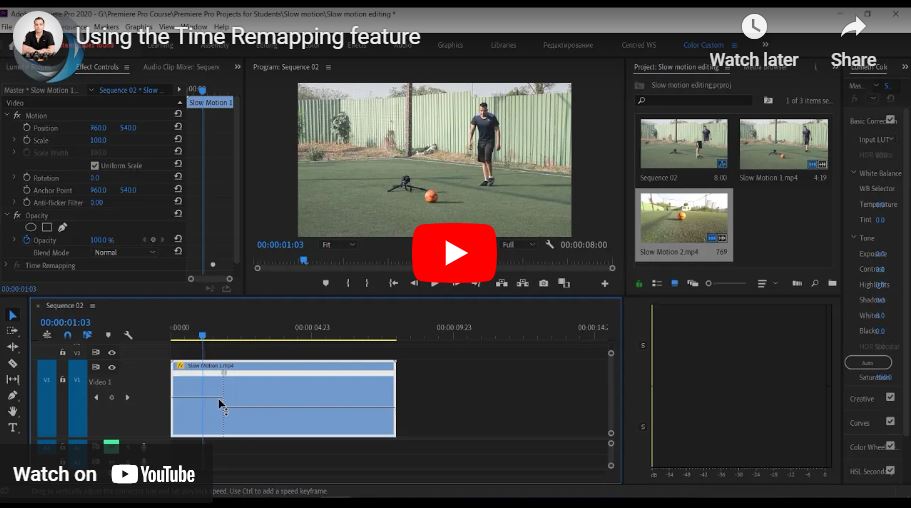
What is Time Remapping in Premiere Pro? What Does it Do? – A Demo
Time remapping in Premiere Pro lets you speed up or slow down video clips for creative effects like slow motion or speed ramps. It gives you precise control over timing, helping you create smooth transitions between different speeds. In this video, we’ll break down what time remapping is, how it works, and show you a quick demo so you can start using it in your edits. Let’s dive in!
This video is from our Adobe Premiere Pro for Beginners Course.
Video Summary
In this tutorial, the instructor introduces Time Remapping, a professional third technique for creating slow-motion in Premiere Pro. Unlike static speed changes, Time Remapping allows for dynamic speed adjustments within a single clip, enabling “speed ramping” where a video starts at normal speed and transitions smoothly into slow motion.
Important Timestamps
- 1:10 – Accessing the Tool: Right-click the clip and navigate to
Show Clip Keyframes > Time Remapping > Speed. - 2:01 – The Speed Bar: How the horizontal line on the clip becomes a handle to drag speed percentages up (fast) or down (slow).
- 2:52 – Respecting the Frame Rate: A reminder that for 60fps footage in a 24fps timeline, the limit is 40% to maintain smooth movement.
- 3:28 – Creating a Speed Ramp: Using keyframes (the
Add Keyframebutton or Ctrl/Cmd + Click) to isolate a specific moment (like kicking a ball) for slow motion. - 4:59 – Smoothing Transitions: How to split a keyframe to create a “slant” or “curve” for a gradual, cinematic change in speed rather than a sudden jolt.
- 6:06 – Bonus: Breaking the Rules: Using Optical Flow (
Right-click > Time Interpolation > Optical Flow) to artificially generate frames when you need to go slower than your frame rate allows. - 8:07 – Best Practice: Why shooting at the correct frame rate is always superior to using artificial frame generation like frame blending.