SEEDANCE 2.0 + Nano Banana Pro = Composition & Continuity
In this tutorial we will be seeing how to use Seedance 2.0 along with reference frames generated in Nano Banana Pro to ensure we get videos which have our desired composition as well as continuity when stitching multiple scenes together. We will also be seeing how to solve issues related to audio consistency inside a video editing software like Premiere Pro. Here’s the video:
Video Summary
This video demonstrates a workflow for creating consistent AI-generated videos using Seedance 2.0 (via the Martini platform) and Nano Banana Pro. It focuses on solving the common issues of composition control and scene-to-scene continuity.
Key Strategies and Workflow
- Controlling Composition: Instead of relying solely on text prompts, the creator uses Nano Banana Pro to generate a specific reference frame [04:16]. This image is then uploaded to Seedance 2.0 to ensure the video aligns with that exact composition [05:31].
- Maintaining Continuity: To keep characters and environments consistent across different clips, multiple reference images are “tagged” in the prompt [08:51]. This includes reusing images from previous scenes to maintain the same visual identity [08:24].
- Scene Transitions: To avoid flickering when connecting scenes, the video suggests starting a new scene with a completely different camera angle—such as a close-up—rather than trying to continue directly from the last frame of the previous clip [06:52].
- Audio Solutions:
- Prompting: It is recommended to avoid prompting for music within the AI tool to prevent sudden cuts between clips [09:30].
- Editing: Use external sources like freesound.org for background tracks [10:02].
- Auto-Ducking: In Premiere Pro, use the “auto-ducking” feature to automatically lower background music volume when sound effects (like splashing water or movements) occur [11:09].
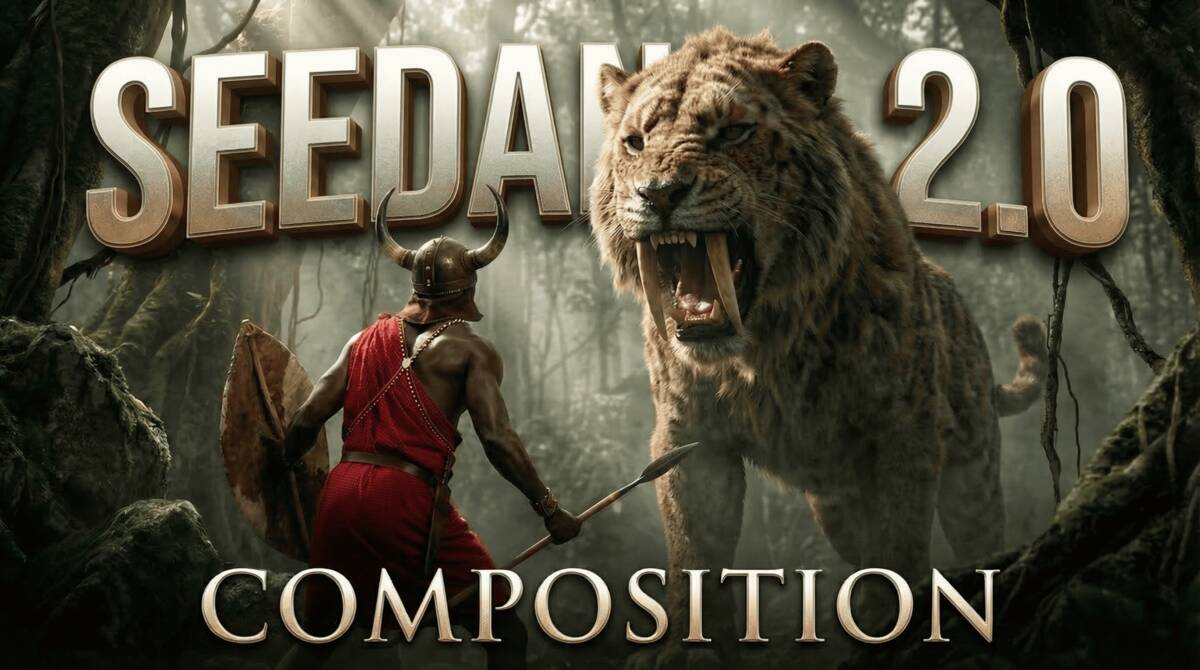
The tutorial uses a battle scene between a warrior and a saber-tooth tiger to illustrate how these tools can produce a seamless cinematic result.
Important Links