Create Any Design Using Nano Banana Pro – 3 Examples & Prompts
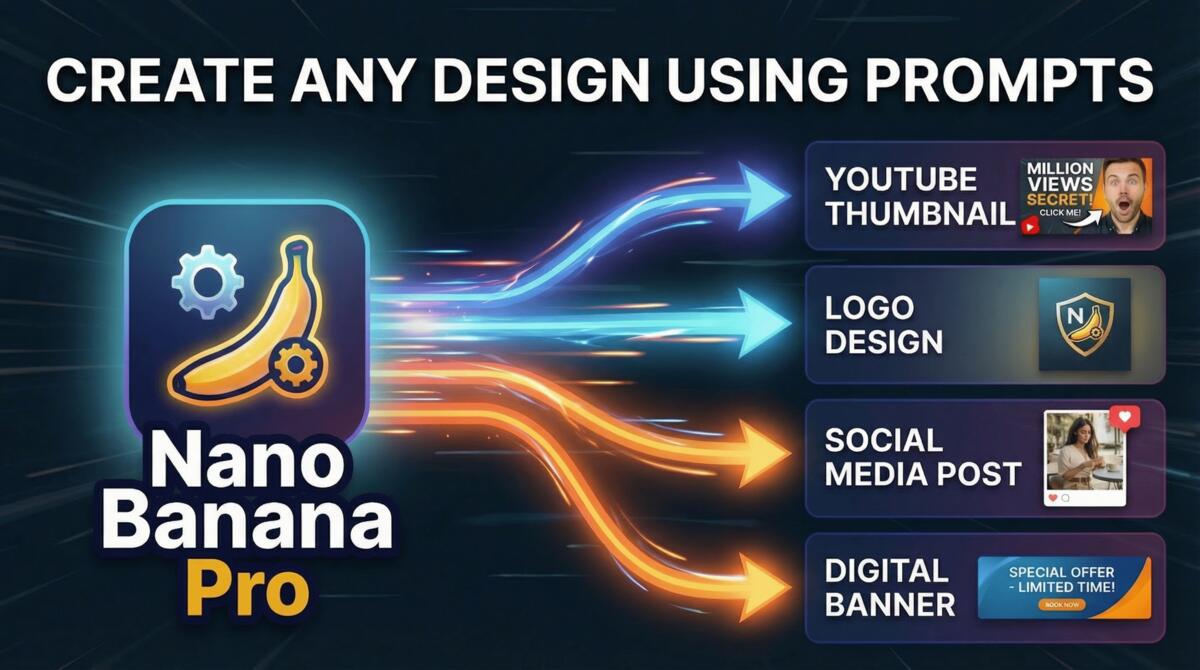
In this tutorial we will be seeing how to use Nano Banana Pro to create professional looking graphic designs like logos, YouTube thumbnails, social media posts, infographics, presentation slides, etc. You will also get your hands on a Prompt Creation Tool. Here is the video:
Video Summary
This video demonstrates how to create professional designs using Nano Banana Pro in 2026, eliminating the need for manual design skills or expensive software [00:00]. The creator showcases a workflow to generate high-quality graphics like YouTube thumbnails, logos, and social media posts.
Key Workflow & Tools
- The Questionnaire Strategy: To get the best results, the creator uses a custom form to define specific design requirements, including aspect ratio, color palettes (using hex codes), and watermark placement [01:48].
- AI Prompt Generation: The form responses are saved as a PDF and uploaded to ChatGPT, which converts the data into a highly detailed prompt optimized for Nano Banana Pro [04:50].
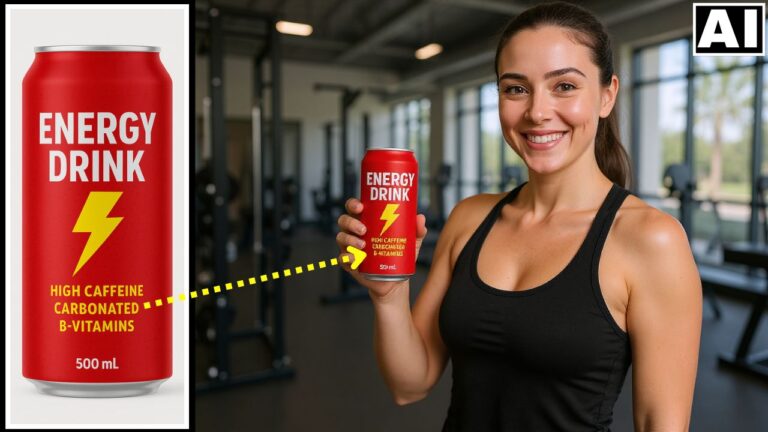
- Reference Images: Users can upload multiple reference photos—such as products, people, or logos—allowing the AI to integrate these elements realistically into the final design [06:00].
Examples & Benefits
- Testimonial Post: The AI creates a cohesive scene where a customer appears to be holding a specific protein powder bottle, a task difficult to achieve with standard templates [06:37].
- YouTube Thumbnail: A travel vlogger example demonstrates how the AI can add custom elements like a Vietnamese hat that wasn’t in the original photo [11:33].
- Dictation Tip: Using ChatGPT’s microphone feature is recommended to describe complex design visions quickly [09:43].
Platforms
While Google Gemini offers a free way to use Nano Banana Pro at 1K resolution [00:53], the video suggests Hicksfield AI for 2K resolution and unlimited generation options to allow for trial and error [13:26].
Important Links