Extend Backdrop in Photoshop Using AI Generative Fill and Generative Expand
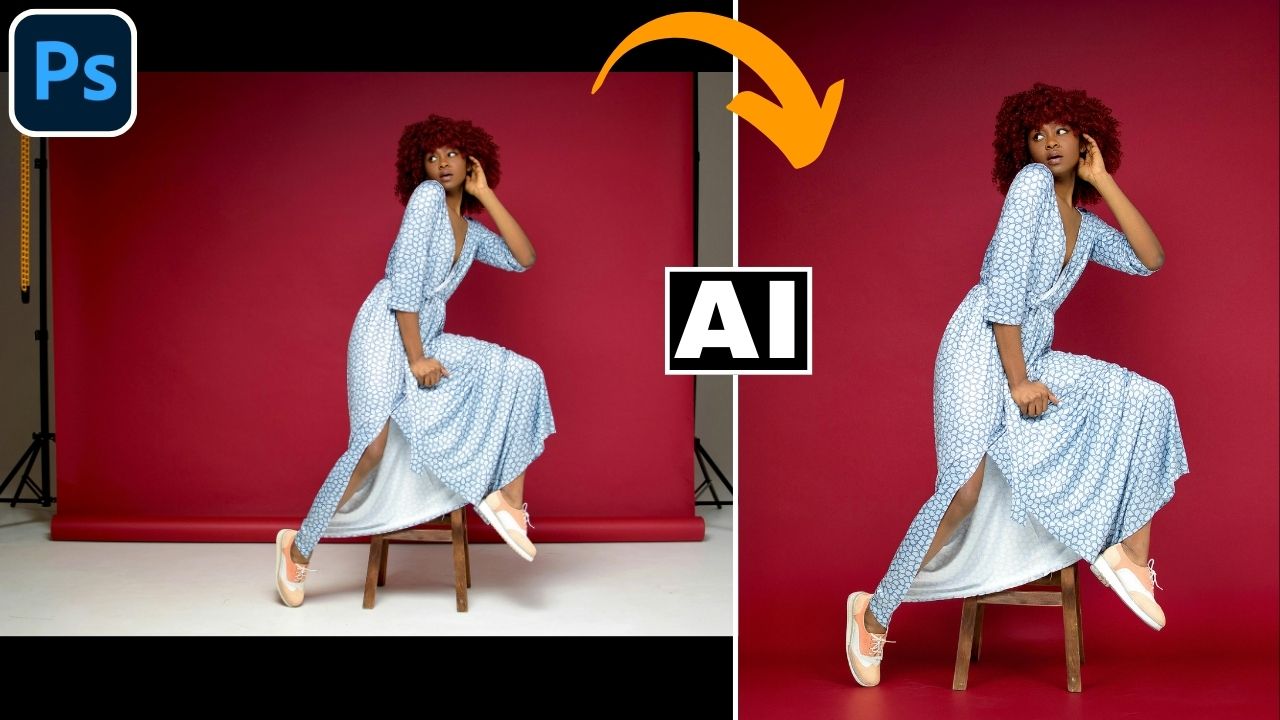
In this video we will be seeing how to use two AI tools, Generative Fill and Generative Expand, to extend a studio backdrop in a seamless manner. We will also be using some other AI tools like the Select Subject tool and the Object Selection tool. Here’s the video:
Video Summary
This tutorial by Creative Pad Media demonstrates how to use Adobe Photoshop’s AI tools to extend a studio backdrop seamlessly, creating a professional and polished final image.
Key Summary Points
- Initial Setup: To simplify the process, start by cropping the image to focus on the area that needs filling, specifically the floor and the folded backdrop section [00:32].
- Intelligent Selection:
- Applying Generative Fill: Run Generative Fill with an empty prompt. If the first result isn’t perfect, check the alternative variations or use a specific prompt like “red seamless paper backdrop” [02:46, 03:25].
- Fixing Distortions: AI can sometimes distort fine details near the selection edges, such as shoelaces. The creator fixes this by copying the original shoes from the base layer and pasting them on top of the AI-generated layer [03:53, 05:31].
- Expanding the Canvas: Once the backdrop is seamless, use Generative Expand with the crop tool to add negative space and adjust the composition [06:03, 06:21].
Conclusion: By combining basic Photoshop selection techniques with AI, photographers can quickly fix studio limitations like short backdrops or messy floors.
Important Links
Here is the link to get the Photoshop free trial so you can use the AI tools shown in the video:
Link to download the image shown in the video:
Link to access our FREE Photoshop Course:
FREE Photoshop Course for Beginners
Link to access our course called Photoshop Generative AI Editing MasterClass, which is available via Udemy:
Photoshop Generative AI Editing MasterClass