How to Add B-roll in Capcut Desktop? – Beginners Tutorial
In this video, I’ll show you how to add B-roll in CapCut Desktop, perfect for beginners looking to enhance their videos. B-roll is essential for making your content more engaging, providing extra visuals that support your main footage. I’ll guide you through the process step by step, from importing clips to layering and adjusting them seamlessly. Whether you’re editing vlogs, tutorials, or any project, you’ll learn how to use B-roll effectively in CapCut. Let’s get started!
This video is from our Capcut Video Editing Course.
Video Summary
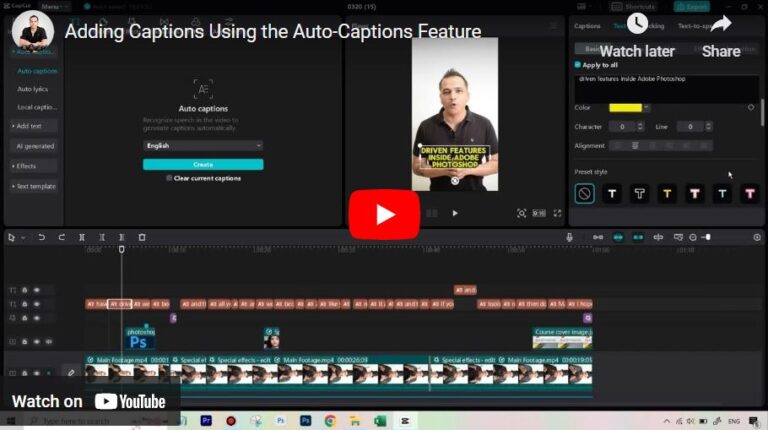
In this phase of the editing process, the instructor demonstrates how to overlay b-roll footage and static assets onto the primary “A-roll” (the main speaker footage). The focus is on synchronization and asset optimization: aligning clips with specific dialogue, muting unwanted background audio from screen recordings, and using speed ramping to fit long demonstrations into short time slots. The instructor also prepares the timeline for upcoming custom animations by scaling and positioning logos and reaction clips to enhance the visual storytelling.
Time Stamps
- 0:12 – Identifying the b-roll assets: screen recordings, stock footage, and logos.
- 1:14 – Dragging the Photoshop feature video onto a separate track.
- 1:40 – Synchronizing the video to the specific dialogue: “all you need to do is…”
- 2:20 – Muting/Volume Control for b-roll footage.
- 2:44 – Adjusting the Scale and position of the screen recording for clarity.
- 3:50 – Introduction to Key Frames: Explaining how custom movements are created.
- 6:10 – Speed Adjustment: Shrinking a long video into a short, fast-paced demonstration.
- 7:29 – Adding and trimming the “Wow” girl stock footage.
- 8:55 – Scaling and positioning the reaction overlay.
- 10:17 – Placing the Course Cover Image at the end of the video.
- 11:15 – Adding the Photoshop Logo to the beginning of the video.
- 12:28 – Conclusion and transition to the “Effects and Animations” phase.