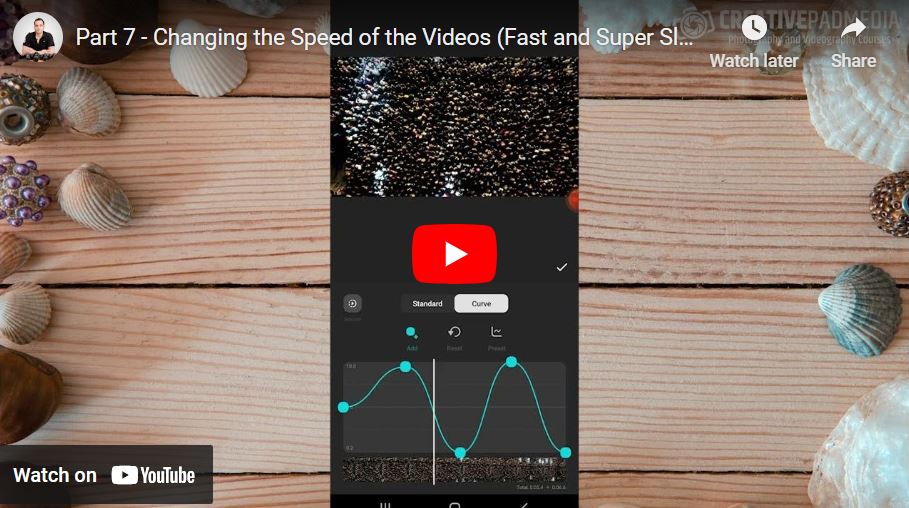
How to Change Video Speed in Inshot – Speed Up & Slow Motion
Want to make your videos stand out with creative speed effects? In this tutorial, I’ll show you how to easily change video speed in InShot. Whether you want to speed up for a fun, fast-paced effect or slow down for dramatic slow motion, I’ll guide you step by step. Perfect for beginners and creators alike, this quick guide will help you master video speed adjustments in no time. Let’s dive in!
This video is from our Inshot Video Editing Course.
Video Summary
In this tutorial, the instructor demonstrates how to manipulate video timing in InShot using the Speed settings. He covers two primary methods: using a Standard Multiplier for quick, uniform speed changes and using Speed Curves for more dynamic, variable speed (time remapping). He also shows how to achieve “Super Slow Motion” by using AI-driven smoothing to process footage that has been significantly slowed down.
Key Concepts
- Duration Indicator: A handy tool at the bottom right of the speed menu that shows the resulting clip length before you apply the change.
- Speed Curves: Allows for localized speed control within a single clip—making parts of the video fast and others slow for a professional, “ramped” look.
- Smooth Slow-Mo: An AI-processing feature (top left of the speed menu) that fills in frames to prevent “choppy” playback when a video is slowed down past its natural frame rate.
Time Stamps
- 0:00 – Introduction to speed settings in the timeline.
- 0:22 – Using the Standard Speed Multiplier to shorten clips to a specific duration.
- 0:37 – Explaining the Duration Indicator (math-free duration planning).
- 2:17 – Introduction to Speed Curves for advanced time remapping.
- 3:00 – Exploring Curve Presets vs. manual point adjustments.
- 5:20 – Creating a “Hero Shot” by slowing down the final clip.
- 6:24 – Using the Smooth AI feature to process high-quality super slow motion.
- 7:30 – Final check of the total project duration (reduced from 1:39 to 1:14).