How to Use the Describe Command in Midjourney? – Beginners Tutorial
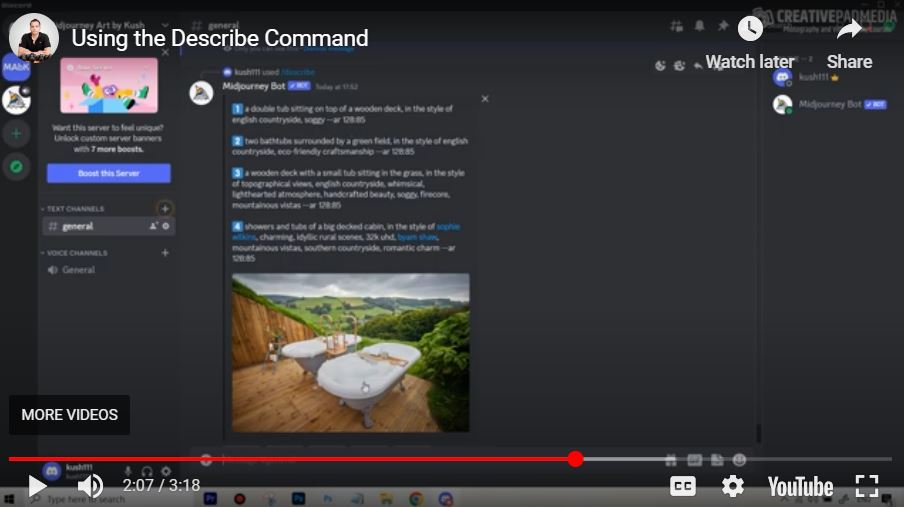
Curious about how to turn your images into creative prompts? In this beginner-friendly tutorial, we’ll explore the Describe command in MidJourney—what it is, how to use it, and why it’s a game-changer. This powerful tool analyzes your uploaded images and generates text prompts to spark new ideas or create similar visuals. Perfect for artists, designers, and creators, it’s an essential feature to boost your creativity. Stay tuned to learn how it works step by step!
This video is from our Midjourney AI for Beginners Course.
Video Summary
In this tutorial, the creator introduces a solution for “Prompt Block”—the inability to come up with effective descriptions for AI image generation. He demonstrates the /describe command in Midjourney, a powerful reverse-engineering tool that analyzes an uploaded image and suggests four different prompt variations. This function is particularly useful for marketing professionals and designers who need to generate original, copyright-free versions of existing concepts by identifying key stylistic elements (such as “English Countryside” or “wooden deck”) that the AI algorithm recognizes.
Time Stamps
- 0:04 – Introduction to the
/describecommand. - 0:11 – Understanding “Prompt Block” and how to overcome it.
- 0:40 – Practical Scenario: Creating commercial-use images for a brochure.
- 1:16 – Step 1: Saving a reference image from Google to use as a starting point.
- 1:40 – Step 2: Using the
/describecommand in Discord and uploading the reference. - 2:02 – Step 3: Analyzing Midjourney’s four suggested prompt variations.
- 2:18 – Identifying key style descriptors (e.g., “English Countryside style”).
- 2:54 – Step 4: Generating and reviewing the new AI-generated images.
- 3:10 – Final Thoughts: Upscaling the results for commercial use.