How to Use Prefer Option Set in Midjourney to Make Prompting Easier
Welcome to this quick guide on using the ‘Prefer Option Set’ in MidJourney! This powerful feature lets you create custom presets to streamline your prompts and save time. Whether you’re adjusting image styles, aspect ratios, or other settings, the ‘Prefer Option Set’ ensures consistency across your creations. In this video, we’ll walk you through how to set it up, customize it, and make the most of it for your AI art projects. Let’s dive in!
This video is from our Midjourney AI for Beginners Course.
Video Summary
The instructor explains that /prefer option set acts like a “preset” in photo editing software (like Lightroom). Instead of typing repetitive technical details—such as lighting styles, camera models, or specific focal lengths—you can assign them to a custom shorthand. For example, assigning a set of real estate photography settings to the word “room.” When you trigger that keyword later using --[keyword], Midjourney automatically appends the full saved prompt to your message. This makes the prompting process significantly faster and more consistent across different projects.
Key Commands & Workflow
- Creating a Preset: Type
/prefer option set, give it an option name (e.g.,saturated), and then select value to paste the full prompt string you want to save. - Using a Preset: Add
--[option name]to the end of any new prompt (e.g.,/imagine prompt: bathroom --saturated). - Viewing Presets: Use
/prefer option listto see a list of all your active shortcuts and their corresponding values. - Deleting a Preset: Type
/prefer option setand enter the name of the preset, but leave the value box empty and hit enter.
Time Stamps
- 0:00 – Introduction to the
/prefer option setcommand. - 0:22 – Analogy: Comparing Midjourney presets to Lightroom editing presets.
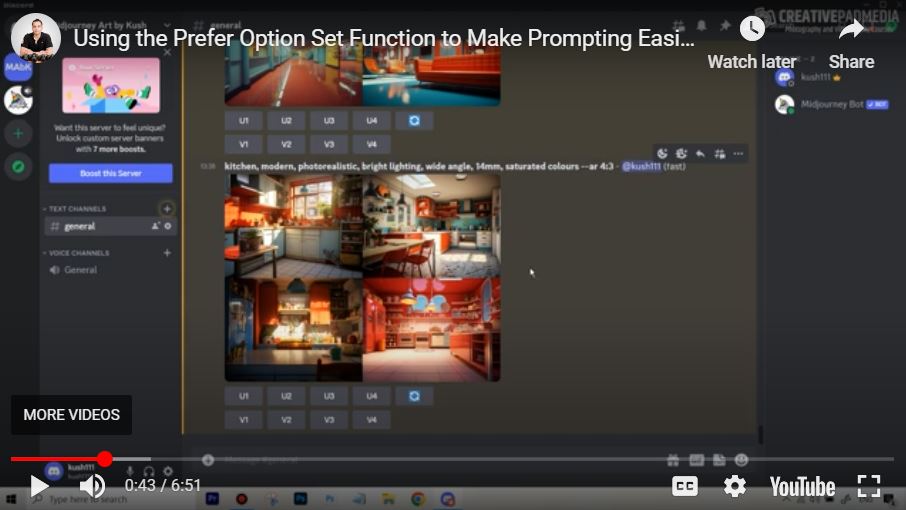
- 0:44 – Example: Extracting the “constant” part of a successful kitchen prompt.
- 1:21 – Step-by-step walkthrough of setting up a custom option and value.
- 2:16 – Demonstration: Applying the new “room” preset to a bathroom prompt.
- 3:14 – Advanced Use Case: Saving specific camera and lens settings (Nikon d750, 14mm, f13).
- 5:21 – Testing the camera preset on a forest landscape image.
- 5:58 – How to view your saved presets using
/prefer option list. - 6:16 – How to delete or remove a preset from your list.