How to Add Transitions in InShot? – Beginners Tutorial
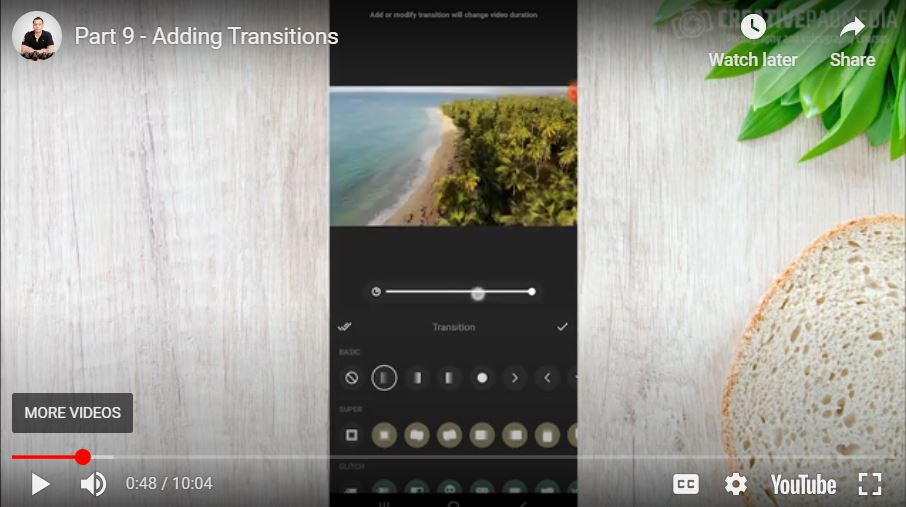
Welcome to this beginner’s tutorial on adding transitions in InShot! First of all we will be looking at where transitions are found in Inshot. Then we will see all the settings within them. Transitions are the perfect way to make your video edits smooth and professional, seamlessly connecting your clips. In this video, I’ll guide you step-by-step on how to explore and apply different transition effects in InShot, whether you’re creating for social media, vlogs, or any project. By the end, you’ll be ready to enhance your videos with stunning transitions. Let’s get started!
This video is from our Inshot Video Editing Course.
Video Summary
In this tutorial, the instructor demonstrates how to add and manage transitions in InShot. He explains the technical impact transitions have on project duration, how to choose the right “vibe” for your audience, and the importance of finalizing your visual timeline before moving on to audio synchronization.
Key Concepts & Tips
- Duration Reduction: When you apply a transition, InShot “superimposes” or overlaps the two clips to create the effect. This reduces the overall length of your timeline.
- Basic vs. Pro: On the free plan, you are primarily limited to “Basic” transitions (like Fades). Pro features include more dynamic options like “Glitch” or “TV” effects.
- Subtlety is Key: The instructor recommends using “Classy” transitions like Normal Fade for professional or mature audiences (e.g., travel companies), rather than “loud” or “crazy” shapes.
- Timeline Foundation: Always finalize your clip durations and transitions before adding music. Since transitions change the timing of your cuts, adding them later would ruin any beat-matching you’ve done with the audio.
Time Stamps
- 0:00 – Locating the transition icon between clips on the timeline.
- 0:24 – Overview of transition categories (Free vs. Pro).
- 0:41 – Adjusting transition duration and intensity.
- 1:13 – Crucial Technical Note: Why transitions shorten your overall video duration.
- 1:58 – Previewing Pro transitions (Glitch category).
- 2:28 – Visualizing how clips “superimpose” during a transition.
- 3:48 – Deciding when not to use a transition (keeping natural cuts).
- 5:06 – Using the Circle transition for specific variety.
- 6:13 – Finalizing the timeline after applying all transitions.
- 6:56 – Adjusting “Blank Canvas” clips to hit the target 60-second mark.
- 7:44 – Strategy: Why the foundation must be correct before the next step (Music).
- 9:14 – Pro-Tip: Matching transition style to your target audience.