How to Use InsightFace with Midjourney for Face Swapping?
Face swapping just got a whole lot easier! In this video, I’ll show you how to use InsightFace with MidJourney to seamlessly swap faces between images like a pro. Whether you’re into creative editing or want realistic results, this step-by-step guide will cover everything—from setting up InsightFace to integrating it with MidJourney for stunning transformations. Stick around to see how AI makes face swapping both fun and incredibly simple. Let’s dive in!
This video is from our Midjoureny AI for Beginners Course.
Video Summary
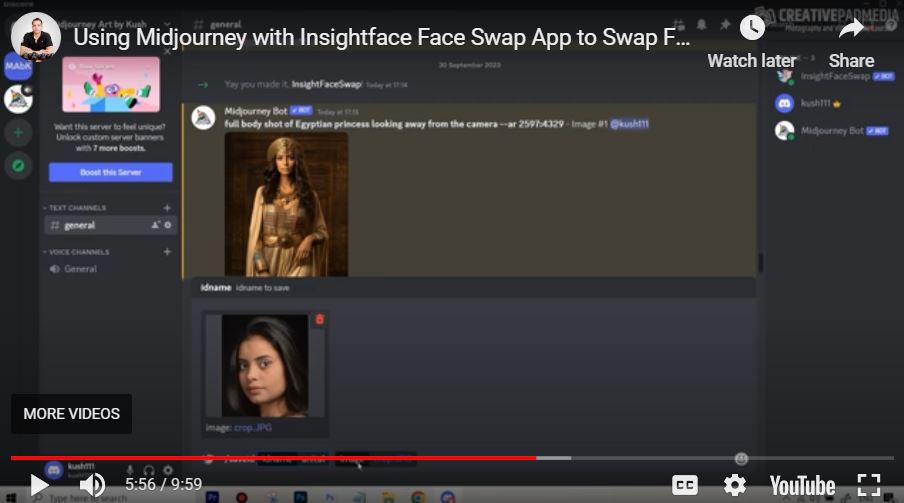
In this tutorial, you will learn how to perform an AI Face Swap by integrating Midjourney with an external Discord bot called InsightFaceSwap. This technique allows you to take an AI-generated character (like an Egyptian princess or a warrior) and replace its face with a real person’s features (such as a client or yourself) while maintaining the original artistic style.
Time Stamps
- 0:48 – Introducing InsightFace: Introduction to the AI company and the specific “InsightFaceSwap” bot for Discord.
- 1:20 – Installation: How to find the bot on Google and authorize it to join your private Midjourney Discord server.
- 3:00 – Retrieving Old Jobs: A quick tip on using the
/showcommand and a Job ID to bring a previous Midjourney generation to the bottom of your feed. - 4:18 – The
/saveidCommand: How to upload a reference photo of a real person and assign it a name (ID) within the bot’s memory. - 5:15 – Pro-Tip (Cropping): Why cropping the reference image tightly around the face leads to more accurate swapping results.
- 6:32 – Executing the Swap (Method 1): Right-clicking an upscaled Midjourney image and selecting
Apps > INSwapperto use the default saved face. - 8:18 – Executing the Swap (Method 2): Using the
/swapidcommand to manually specify which saved ID to apply to a newly uploaded base image. - 9:36 – Results: Comparing the AI-generated faces with the swapped versions to see the improved likeness.